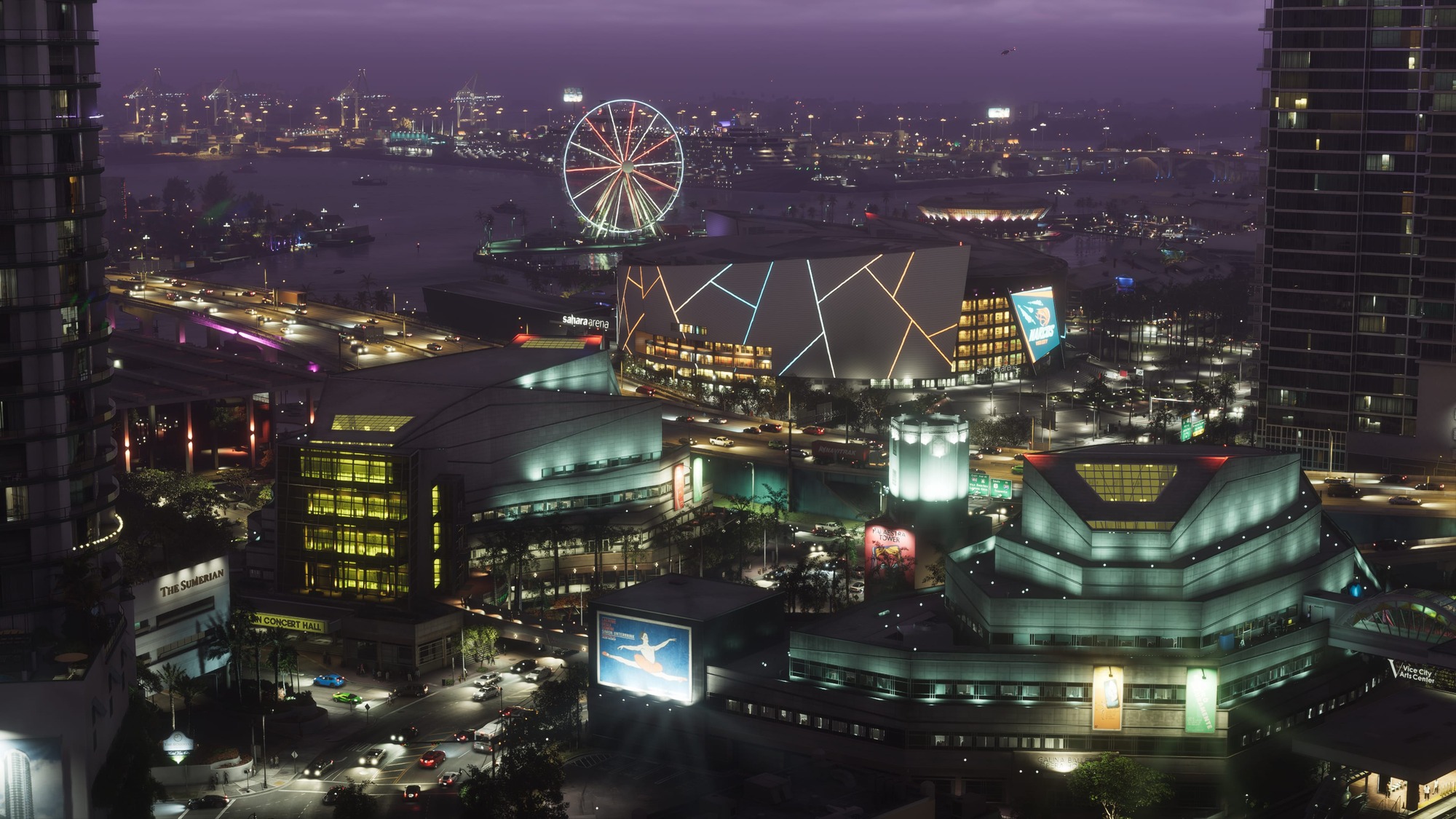
How to Play GTA 6 at 60 FPS Using Frame Generation
A capture card, a Windows PC and frame-generation software can smooth the picture, but the console still renders at 30 FPS and input lag rises.
Grand Theft Auto VI targets 30 frames per second on PlayStation 5 and Xbox Series X|S, with no built-in performance mode to raise the cap. With a capture card and a gaming PC, you can generate additional frames to make the game appear smoother at 60 FPS. It does not make the game itself run at 60 FPS, and the extra processing can add input delay.
The workaround sends the console’s video through a capture card to a Windows PC. Software such as Veyra then analyzes the feed and creates an intermediate frame between each original frame. The result is smoother motion on your PC monitor without changing the game's actual frame rate.
What you need to play GTA 6 at 60 FPS
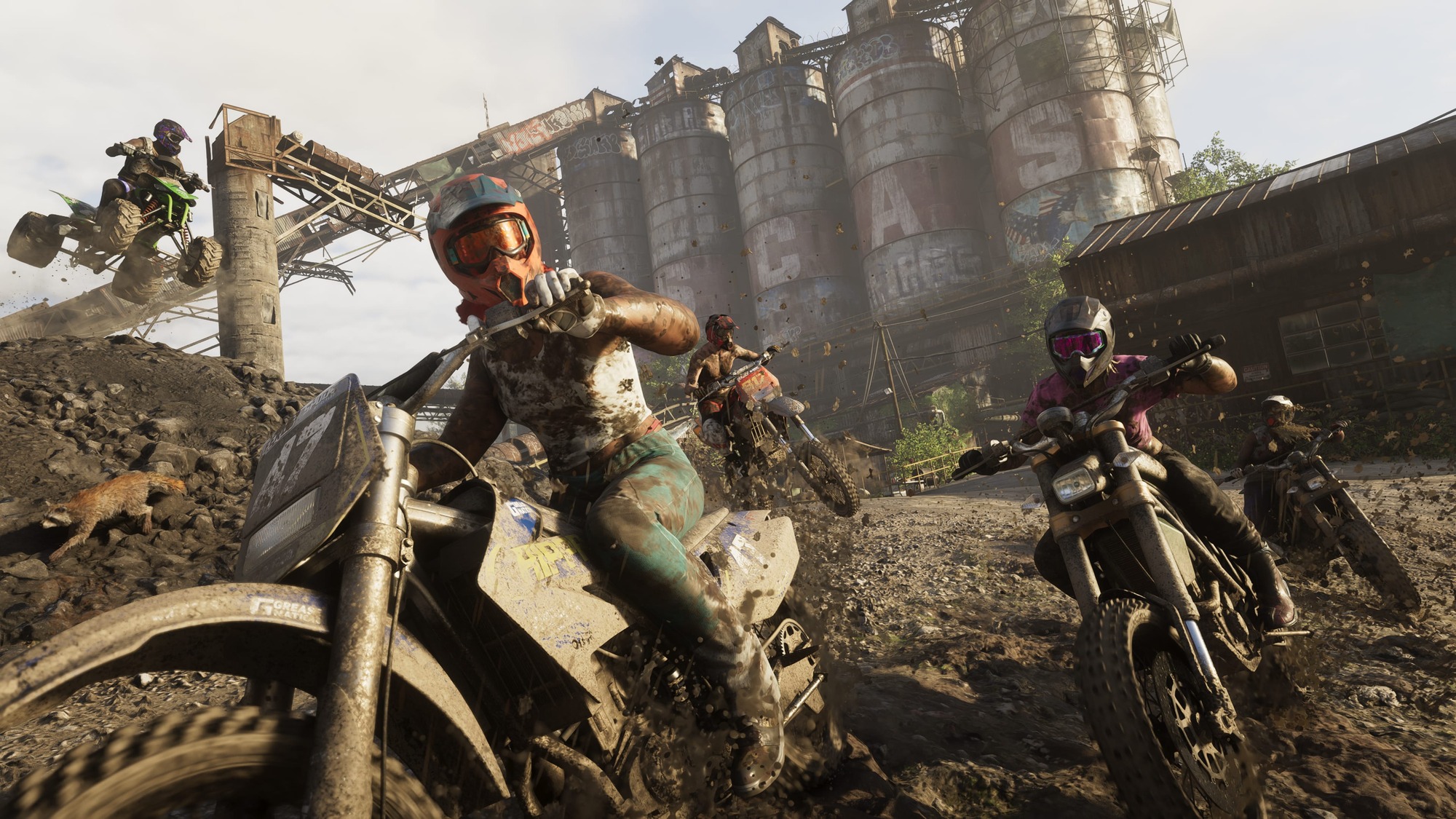
You'll need a PS5 or Xbox Series X|S, an HDMI capture card, a Windows gaming PC with a compatible graphics card, and a monitor that supports at least 60Hz. You'll also need frame-generation software such as Veyra.
Connect your console to the capture card's HDMI input, then connect the capture card to your PC via USB or PCIe, depending on the model. On PS5, go to Settings > System > HDMI and turn off Enable HDCP. Otherwise, the capture card may show a black screen.
Once the PC can see the console feed, open Veyra and select the capture card as the video input. Confirm that the picture and audio work before changing the frame-generation settings.
How to set up Veyra for 60 FPS
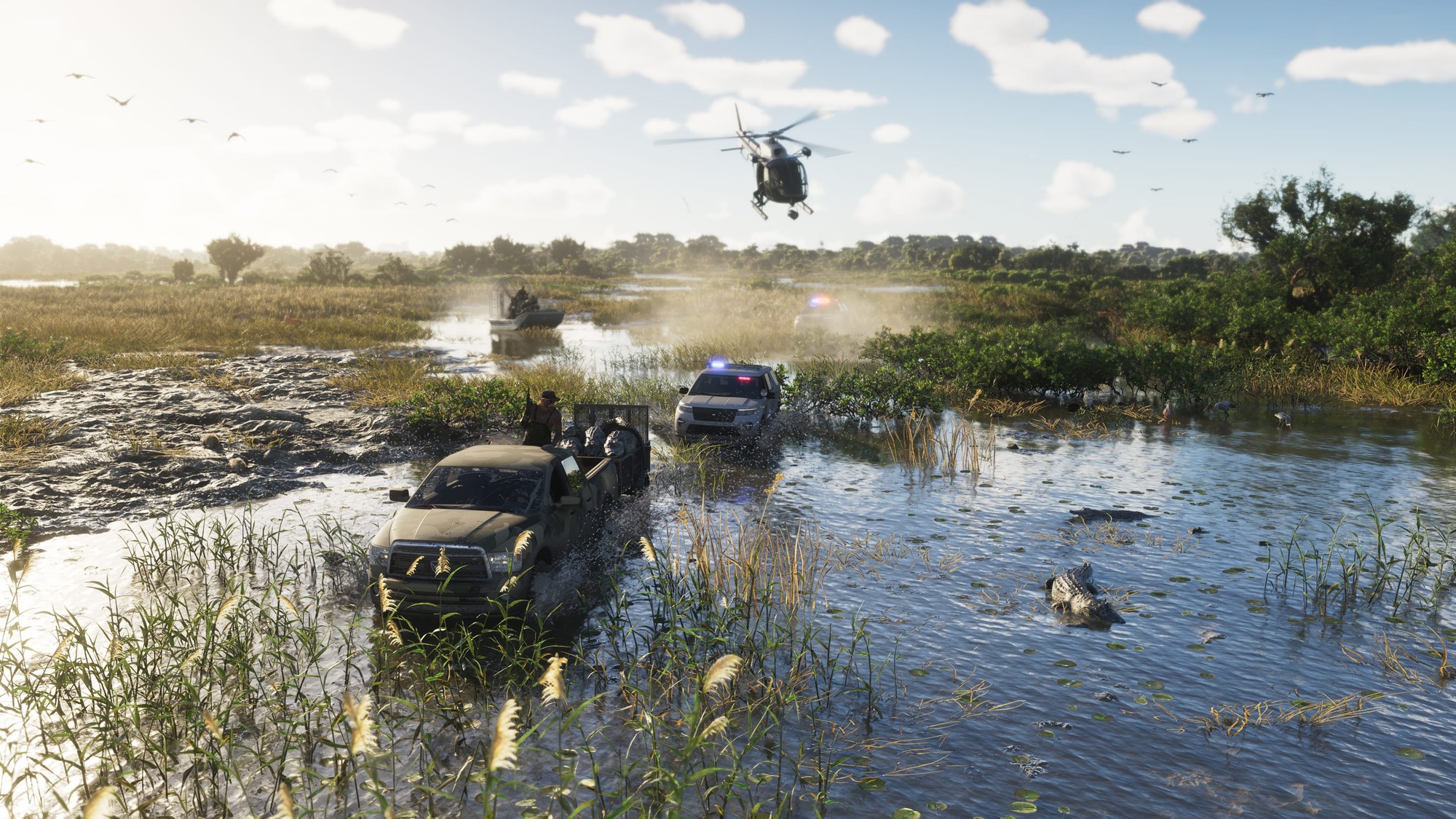
In Veyra, select your capture card and configure its resolution and frame rate. If you're capturing at 60 FPS, the feed will contain duplicate frames because GTA 6 only renders 30 unique frames per second. For a 60 FPS capture feed, enable Remove duplicate frames in Veyra's optical-flow settings and select 60-to-30 mode. This prevents the software from using repeated frames when generating new ones.
Next, enable frame generation and select a 2X multiplier. The software uses the original frames to estimate what should appear between them, producing a 60 FPS output. You can then display the processed feed full-screen on the PC monitor. If you're using OBS and Lossless Scaling instead, display the captured footage in an OBS projector window, then apply 2X frame generation through Lossless Scaling.
A high-refresh-rate display alone will not unlock the game’s frame rate. The processed image has to run through the PC, so the console’s direct HDMI output will still show the original 30 FPS presentation.
Smoother motion comes with a response-time trade-off
Frame generation can make camera movement and driving look smoother, but the generated frames are estimates based on the video image. Unlike frame generation built directly into a PC game, Veyra doesn't receive motion vectors or depth data from GTA 6. It has to estimate movement from the captured video alone. Fast movement can therefore produce smearing, flickering or visual distortions around details such as subtitles and the minimap.
The setup can also increase input latency because the game’s video must be captured, processed and displayed. In one test, TechSpot measured roughly 35 milliseconds of additional latency from the capture and frame-generation pipeline. The same test measured about 160 milliseconds of input lag in the game’s direct 30 FPS output and roughly 190 to 200 milliseconds with the workaround enabled. That result comes from one particular setup, but it illustrates why a 60 FPS image is not the same as a game responding at 60 FPS.
The Xbox glitch is a separate, less usable option
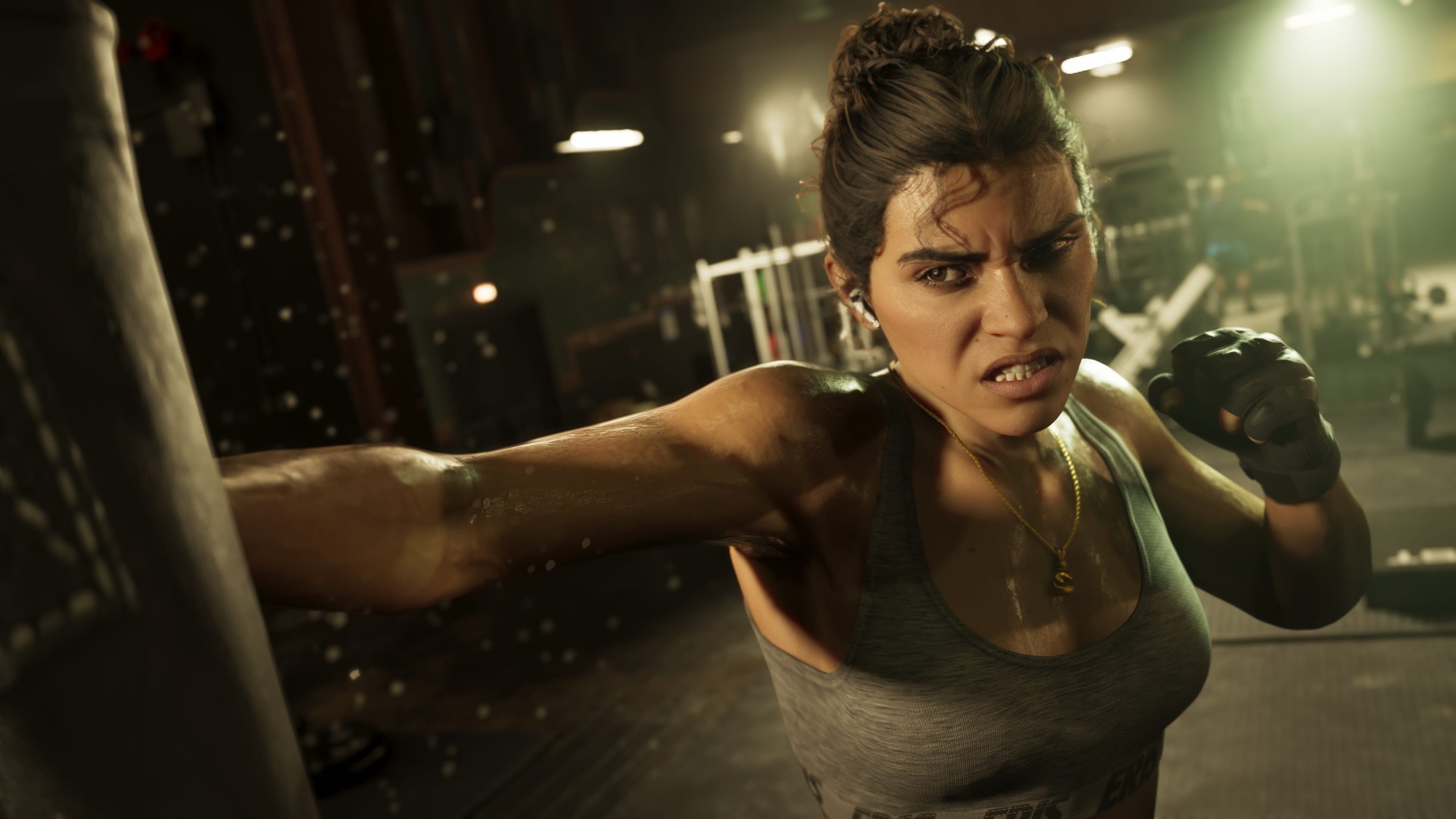
Xbox players have also discovered a Quick Resume glitch that can unlock GTA 6's frame rate. To trigger it, set the console to 60Hz and launch the game. When the six stars appear on the loading screen, switch to 120Hz, launch another game without closing GTA 6, then return to it through Quick Resume.
Unlike PC frame generation, this glitch changes the game's actual frame rate, but it also speeds up gameplay and animations. Performance remains inconsistent, with demanding scenes often running at around 35 to 40 FPS rather than reaching 60. It is inconsistent and could stop working after an update. Rockstar has not announced a native 60 FPS mode for current consoles.
If you already own a capture card and a capable gaming PC, Veyra is worth trying to see whether you prefer the smoother image. Buying extra hardware solely for this workaround is harder to justify, especially when it introduces visual artifacts and additional input lag.