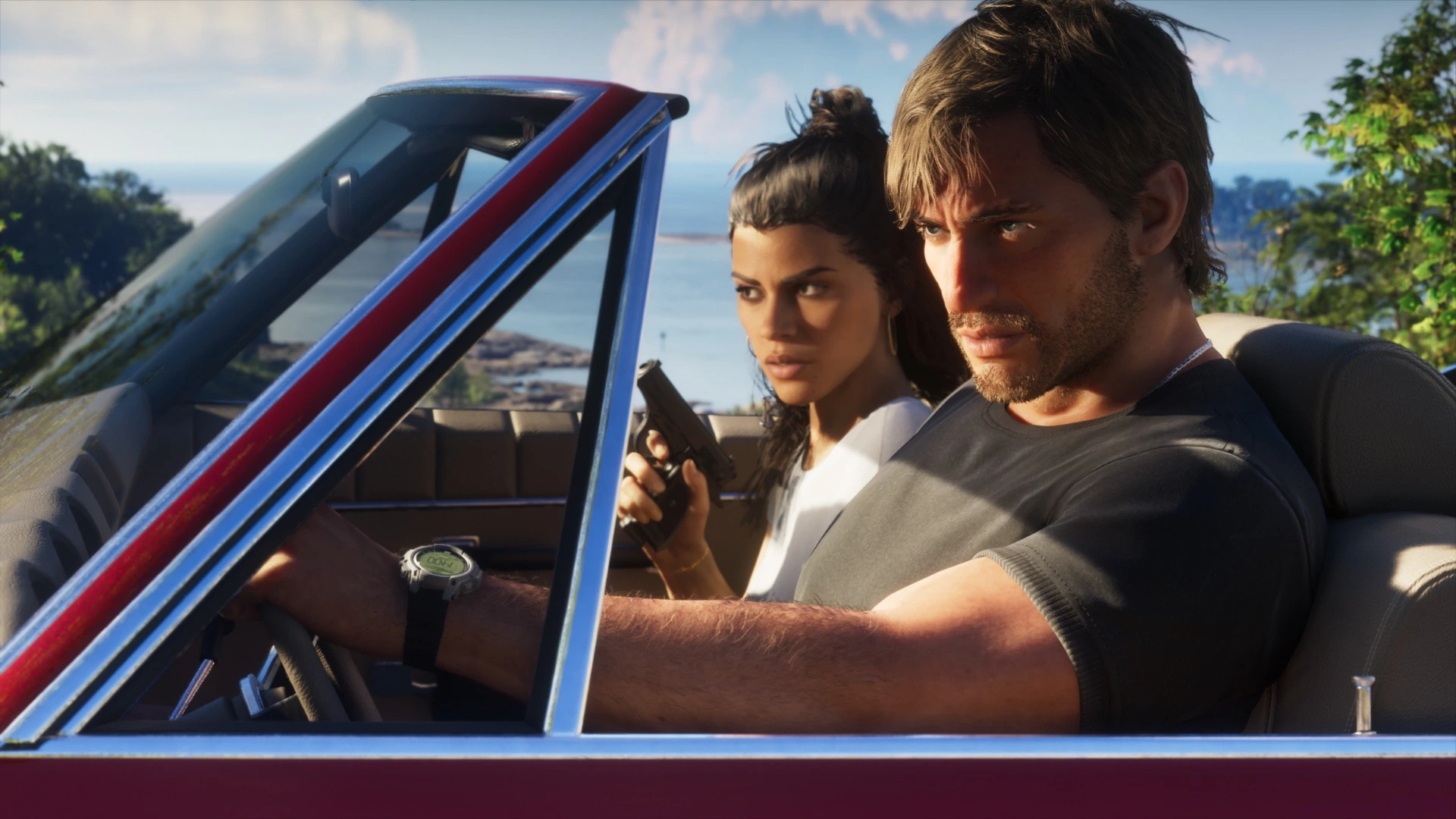
GTA 6 Auto Drive: How to Enable It (PS5 and Xbox)
GTA 6 lets Jason and Lucia drive automatically across Leonida, but the feature is hidden inside Cinematic Mode. Here's how to activate it, adjust your speed, and take back control.
Driving is one of the biggest parts of Grand Theft Auto VI, but covering the enormous distances between Vice City, Port Gellhorn, the Leonida Keys, and Mount Kalaga can become time-consuming. Fortunately, Rockstar has included an Auto Drive feature that allows players to travel to a destination without manually steering their vehicle.
Unlike taxis and rideshare services, Auto Drive is completely free and works with vehicles the player is already driving. It also uses the game's cinematic camera, providing different perspectives of Leonida while Jason or Lucia handles the journey. The feature is available from the beginning of the game, although its controls are easy to overlook.
How to enable Auto Drive in GTA 6
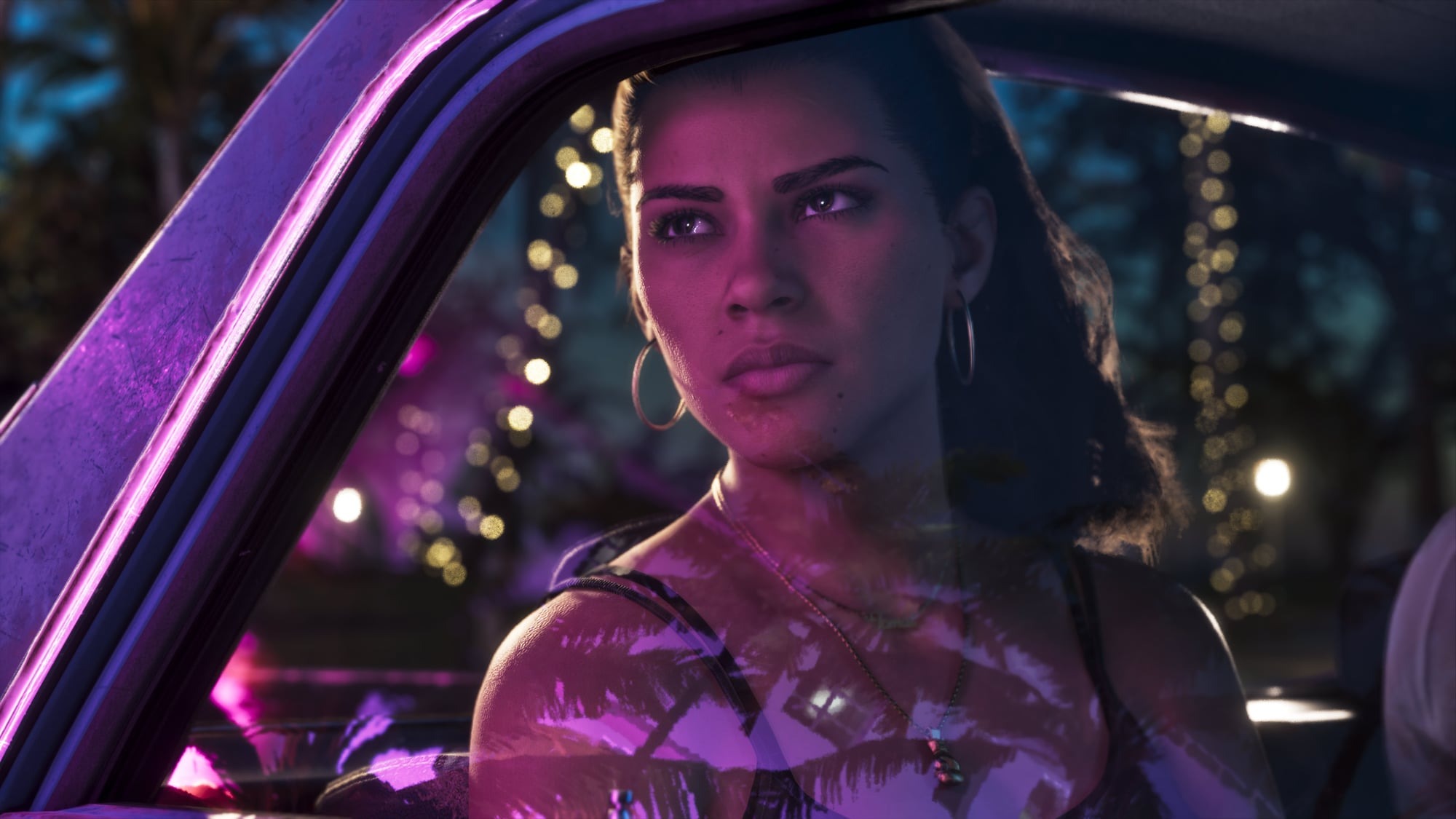
Auto Drive works through Cinematic Mode rather than a dedicated button in the ordinary driving controls.
Follow these steps to activate it:
- Open the map and set a waypoint at your intended destination.
- Enter a vehicle and begin driving along a public road.
- Hold Down on the D-pad, then press Options on PS5 or Menu on Xbox Series X|S to enter Cinematic Mode.
- Once the cinematic camera is active, look for the Enable Auto Drive prompt in the bottom-right corner.
- Hold Circle on PS5 or B on Xbox to activate Auto Drive.
- Release the controls and allow Jason or Lucia to follow the route automatically.
The vehicle will follow the marked GPS route while obeying ordinary traffic rules. It stops at red lights, adjusts its speed around other vehicles, and handles turns without requiring steering input.
Auto Drive works with personal vehicles and suitable stolen cars, making it possible to use the feature without purchasing special equipment.
GTA 6 Auto Drive controls for PS5 and Xbox
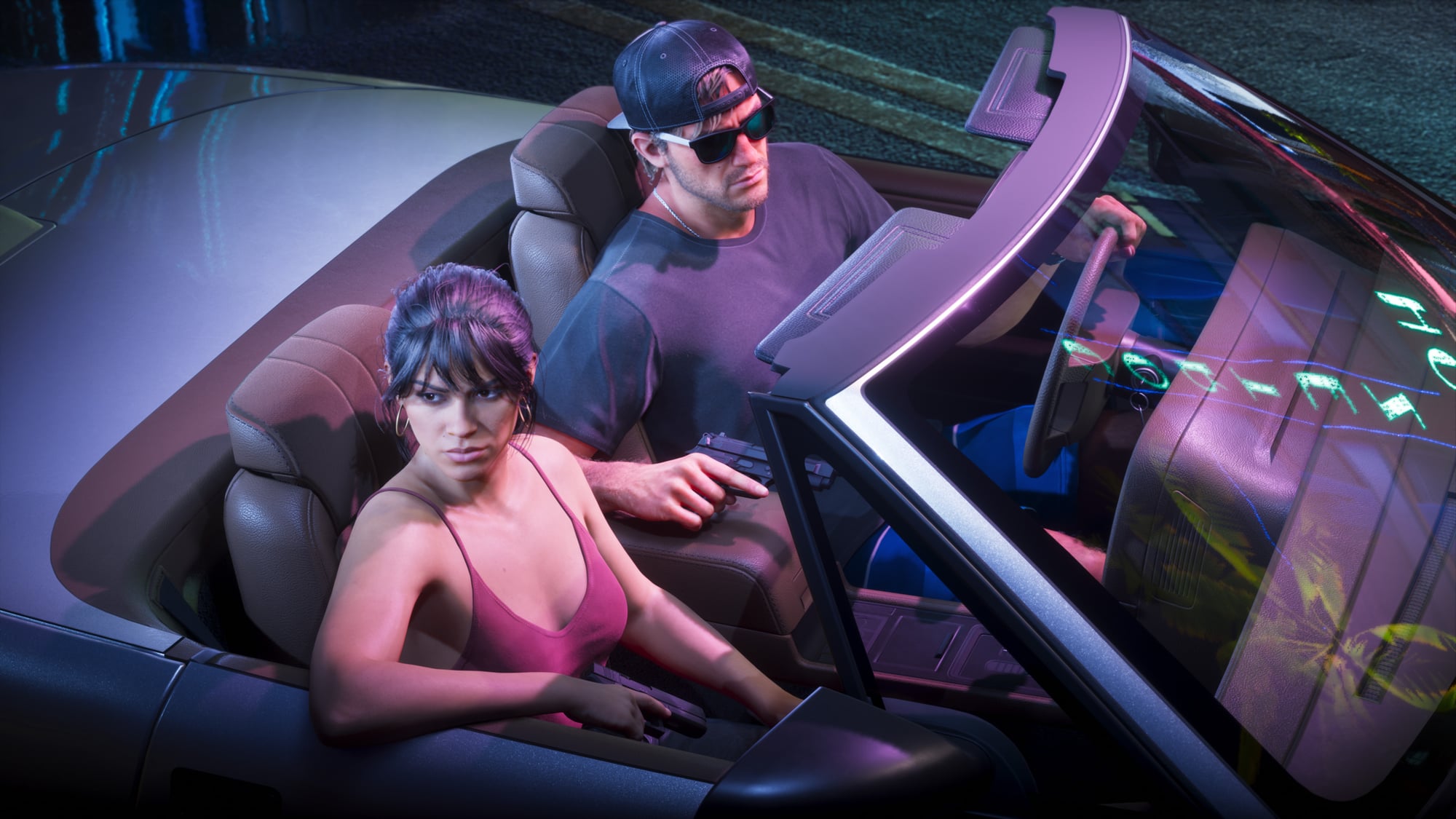
Once Auto Drive is active, players can adjust the vehicle's speed or switch back to manual driving.
| Action | PS5 | Xbox Series X/S |
|---|---|---|
| Open Cinematic Mode | Hold D-pad Down + Options | Hold D-pad Down + Menu |
| Enable Auto Drive | Hold Circle | Hold B |
| Increase speed | R2 | RT |
| Decrease speed | L2 | LT |
| Disable Auto Drive | Hold Circle | Hold B |
| Exit Cinematic Mode | Hold D-pad Down | Hold D-pad Down |
There are three available speed settings, with Speed 2 selected by default. Speed 1 provides a slower journey, while Speed 3 allows the vehicle to travel more quickly.
However, the highest setting does not make the driver ignore traffic regulations. Jason and Lucia still stop at intersections and generally follow the speed limit, meaning that driving manually is often faster.
To regain direct control, use the displayed Disable Auto Drive prompt. Leaving Cinematic Mode also returns the camera to the ordinary driving view.
How to use Auto Drive anywhere in GTA 6
By default, Auto Drive is configured for relatively safe driving situations. This limits when the option becomes available, particularly when the player is off-road or involved in a dangerous encounter.
Fortunately, the restriction can be changed through the settings menu.
- Pause the game.
- Open Settings.
- Select the Gameplay tab.
- Scroll to the Accessibility options.
- Find Auto Drive.
- Change the setting from Restricted to Unrestricted.
The Unrestricted setting allows Auto Drive to operate in more situations, including away from ordinary public roads and during certain pursuits.
It does not make the driving AI invulnerable or particularly skilled at escaping police. The vehicle can still collide with obstacles, and following a predictable route during a chase may expose the player to additional danger.
For ordinary exploration, Restricted is generally sufficient. Unrestricted is more useful for players who want the game to handle as much driving as possible.

Why is Auto Drive not working?

The most common reason Auto Drive fails to activate is that the player has not entered Cinematic Mode correctly.
Holding Down on the D-pad opens the relevant camera controls, but players must also select Cinematic Mode before the Auto Drive prompt becomes available.
If the option is missing or disabled, try the following:
- Set a waypoint: Mark a destination on the map so the driving AI has a route to follow.
- Start moving: Drive forward before activating Cinematic Mode. The system can struggle when a vehicle is parked or positioned awkwardly.
- Move onto a public road: Auto Drive is more reliable on ordinary roads than in parking lots or inaccessible terrain.
- Check the settings: Change Auto Drive to Unrestricted if the option remains unavailable outside normal traffic conditions.
- Leave a police pursuit: Restricted mode may prevent activation while officers are actively chasing the player.
Auto Drive is not a solution for every driving situation. The system can struggle with complicated parking maneuvers, obstacles, and terrain that lacks clearly defined roads.
If a vehicle becomes stuck, disable Auto Drive and reposition it manually before trying again.
Is Auto Drive better than taxis or fast travel?
Auto Drive is free and allows the player to keep using their current vehicle. However, the journey takes place in real time, which means traveling across Leonida can still take several minutes.
Taxis and RydeMe services provide an alternative when players want to reach a destination without driving. Once inside a hired vehicle, players can pay an additional $100 to skip the journey instead of watching the entire trip.
Auto Drive is the better choice when players want to enjoy the scenery, listen to the game's radio stations, or discover more of the map.
The journey also helps uncover unexplored areas along the selected route, making it useful when revealing portions of Leonida's map that remain obscured.
For players simply trying to reach another mission as quickly as possible, paid travel services are generally more convenient.
Can you use Auto Drive while traveling with Jason or Lucia?
Yes. Auto Drive can be used while both protagonists are traveling together, allowing the game to handle navigation while their conversations continue.
There is also a separate partner-driving feature.
When Jason and Lucia are traveling together, holding Right on the D-pad and selecting the character-switch command allows the other protagonist to take over driving.
The passenger can then use the partner interaction controls to request a faster journey.
This is different from Cinematic Auto Drive because the companion becomes the driver rather than the active protagonist automatically handling the vehicle.
For ordinary solo exploration, Cinematic Auto Drive is the more useful option. It works without requiring the other protagonist to be present and can be activated whenever the necessary driving conditions are met.
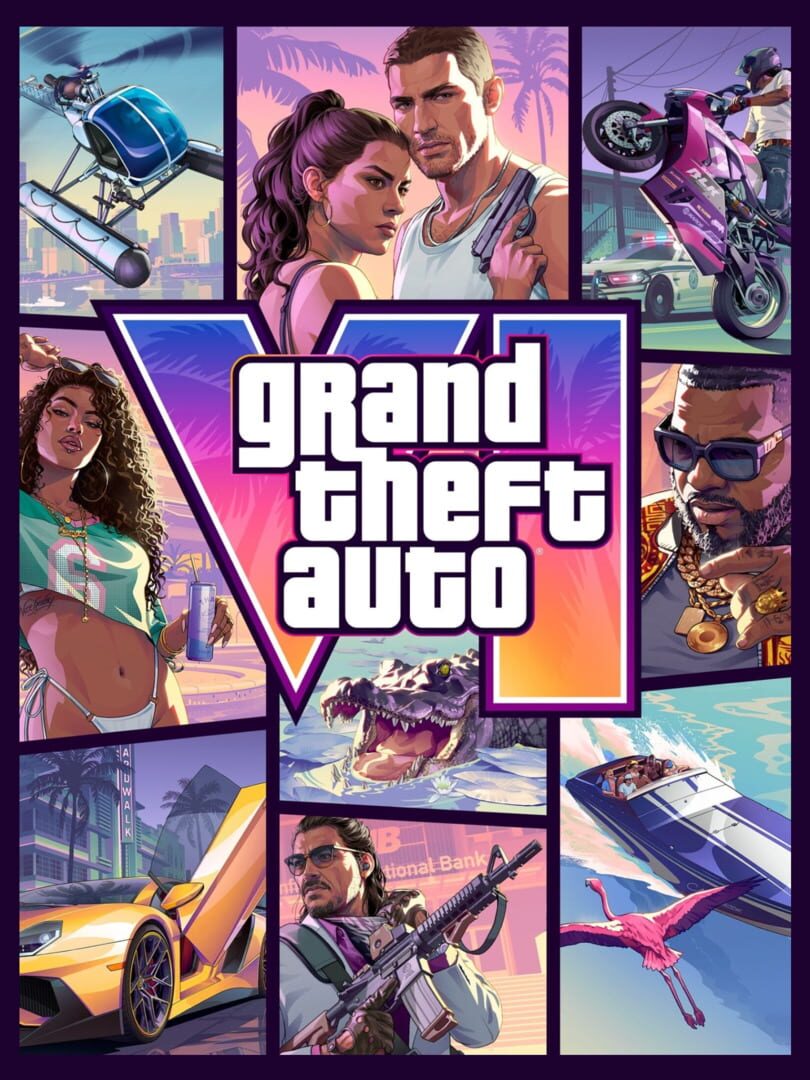
Grand Theft Auto VI heads to the state of Leonida, home to the neon-soaked streets of Vice City and beyond in the biggest, most immersive evolution of the Grand Theft Auto series yet.


